
Reminder
- You can only insert multiple date in our text editor.
- Countdown and Save the date feature is only applicable for one date.
Steps To Add Multiple Dates
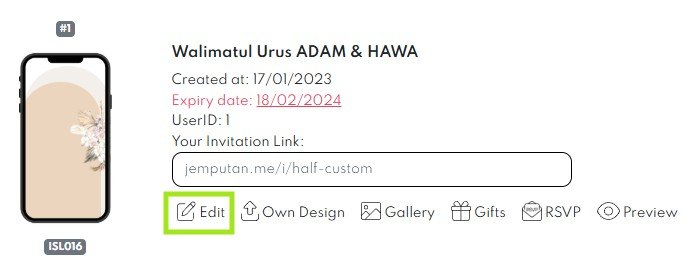
- Log in to your card. Click Edit.

- Go to page 2 (Cover Page), you can insert multiple date in Day & Date section.

- Next, go to Programme & Add. Info (Page 5). In this page, there will be two option for you to insert the multiple date.

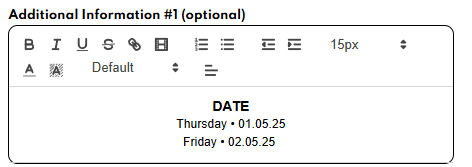
Additional Information #1 (Optional) Section
- Insert multiple date in the Additional Information #1 (Optional) Section.

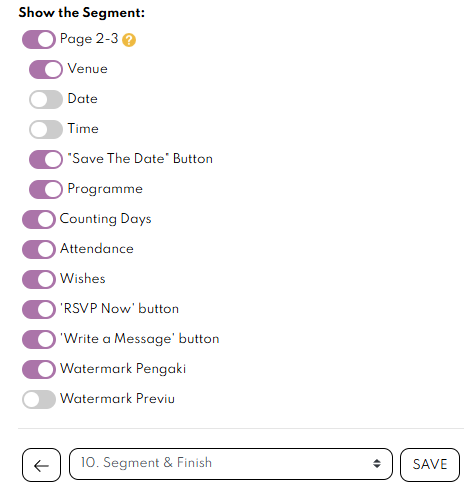
- Go to Segment & Finish (Page 10), disable the Date and Time option.

- Your card will appear as below.

- Click save button to save your card.

Programme Section
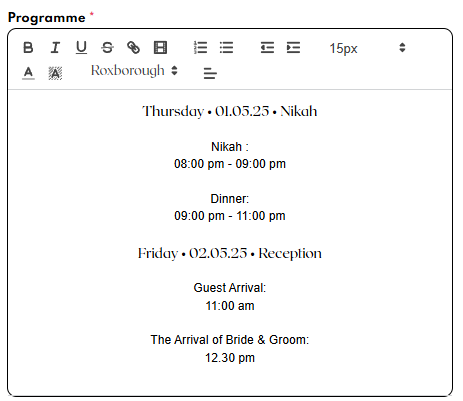
- Insert multiple date in Programme section.

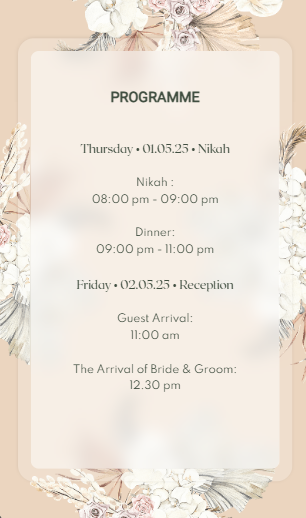
- This is an example of programme with multiple dates in one card.

- Click
 save button to save your card.
 save button to save your card.
Leave a Reply