Option 1: Add On Custom Design
- You can overwrite the whatsapp preview image by uploading your own picture in link thumbnail section via custom design.
- Refer to this link for instructions on how to add on custom design. https://blog.jemputan.me/customized-order-guideline/
- Once payment is completed, go to the Link Thumbnail Section.
- Upload your image in the link thumbnail section.
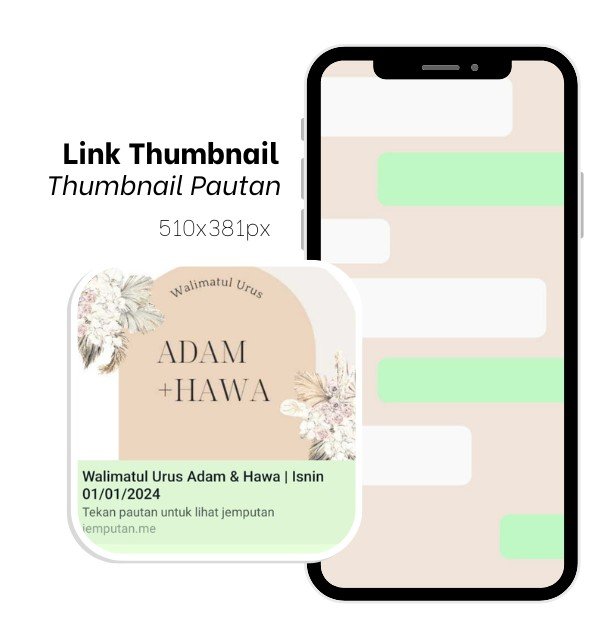
- The image must follow our designated size (510 x 381 px).
- Below is an example of Link Thumbnail.

Option 2: Upload Image in WhatsApp via 
- Go to your card.
- Click the
 button, and then click Share button.
 - Below pop-up window will appear.

- Highlight all the text and copy it.
- Paste the text into your WhatsApp chat. Do not send it to your guest yet.

- Go back to the share pop-up window in your card, click
 to copy your card’s link.
 - Go to your Whatsapp text editor, and paste the link in the text.

- Click the
 or
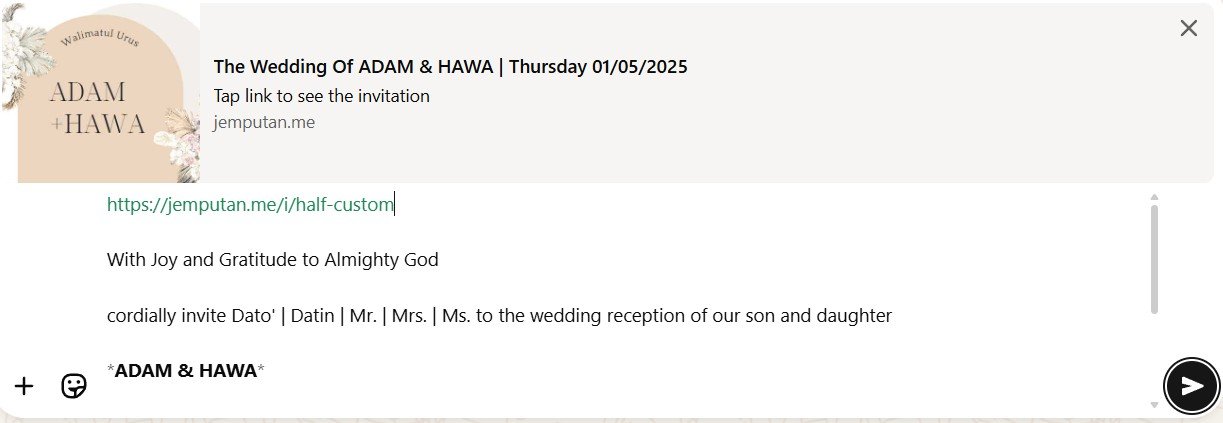
or  button in Whatsapp Text Editor, and upload new image from your device to overwrite the link thumbnail.
 - Below is an example of overwritten link thumbnail in WhatsApp.

- Click forward to share the card with your guest.
 button, and then click Share button.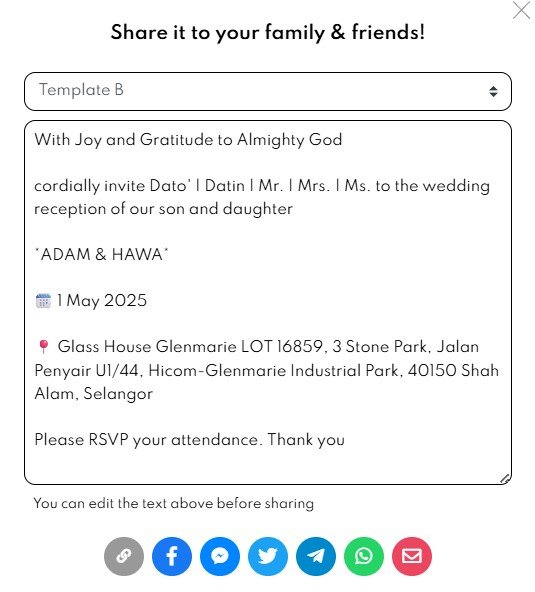

 or
or  button in Whatsapp Text Editor, and upload new image from your device to overwrite the link thumbnail.
Option 3: Upload Image in WhatsApp via 
- Go to your card.
- Click the button, and then click Share button.
- Below pop-up window will appear.
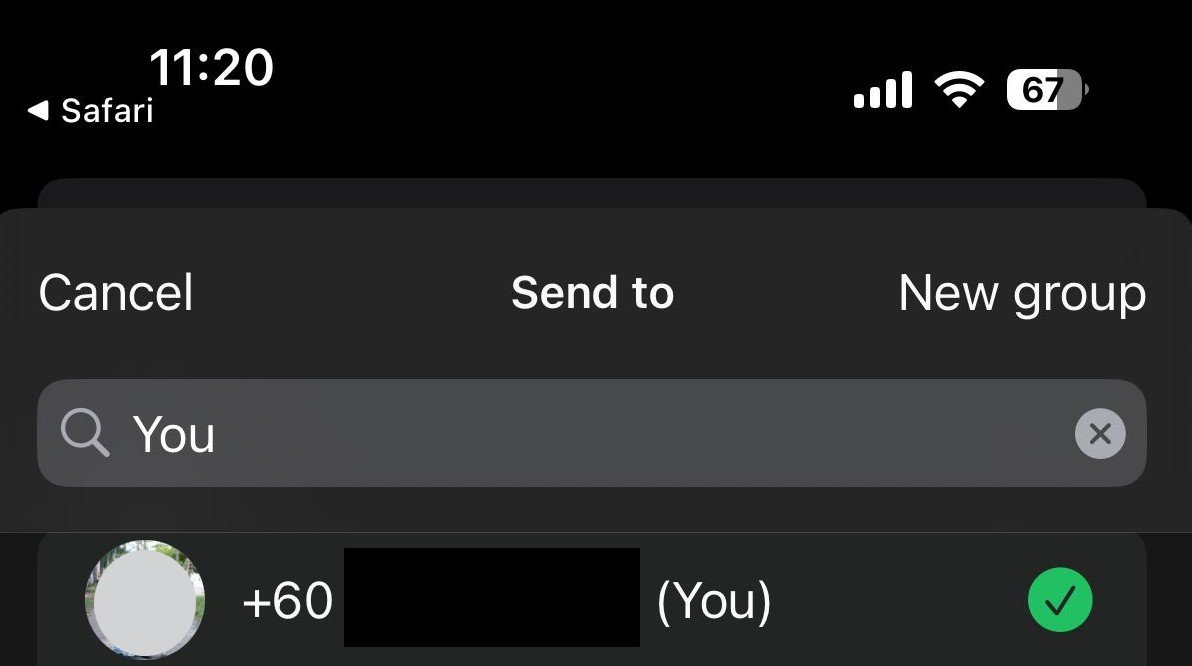
- Click
 button. Then, you will be redirected to your WhatsApp window.
 - Share the link to yourself.

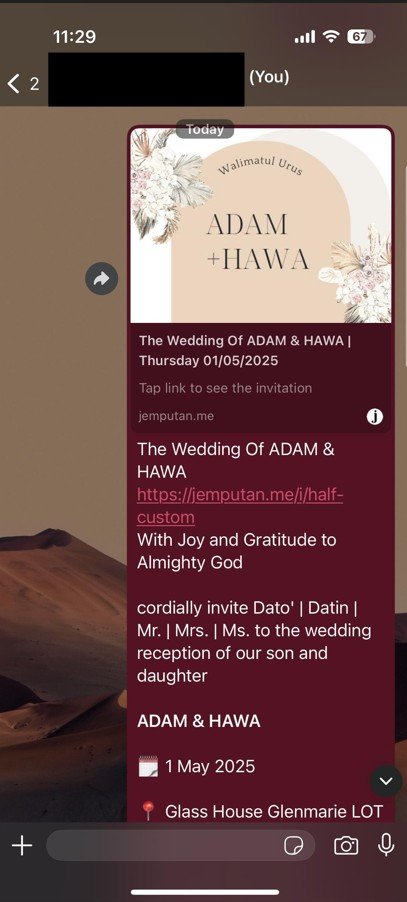
- You will receive the invitation message to yourself, as shown in the image below.

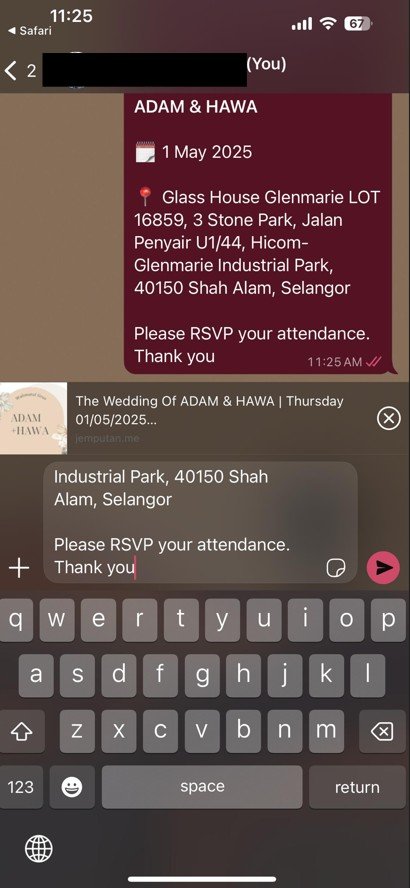
- Then, Copy the sent text and paste into the Whatsapp text editor, as per below image.

- Click the or button in Whatsapp Text Editor, and upload new image from your device to overwrite the link thumbnail.
- Click send. Once done, you can begin to forward this invitation text to your guest.
- Below is an example of overwritten link thumbnail in WhatsApp.
Leave a Reply